Disclaimer : This blog space does not necessarily reflect my views/ideas on the technology and beyond doubt, never reflects the views of my employer.
Showing posts with label SQL Server. Show all posts

Thursday, October 24, 2013

Connecting Oracle SQL Developer 3.2 To MS SQL Server 2008 R2

First, if you are using older version of SQL Developer like 3.0 or earlier, and database older than SQL Server 2008, you can also try the steps from the video as Oracle has recommended @ http://www.oracle.com/technetwork/developer-tools/sql-developer/sql-server-connection-viewlet-swf-089886.html.


So, how to create a SQL Server  2008 R2 connection in SQL Developer 3.2.20.09.

Download required Jar Files:

  1.  Go to http://msdn.microsoft.com/en-US/data/aa937724.aspx and download Microsoft JDBC Driver 4.0 for SQL Server. You will get the file sqljdbc_4.0.2206.100_enu.tar.gz. Extract the archive to sqljdbc_4.0.2206.100_enu.  You can find sqljdbc4.jar in the folder.
  2. Go to http://jtds.sourceforge.net/  and download Download jtds-1.3.1-dist.zip (551.2 kB).   You will get jtds-1.3.1.jar file.

Configure the SQL Developer:

First, in SQL Developer, Open menu Tools --> Preferences. From the dialogue box, select Database --> Third Party JDBC Drivers. Click on Add Entry and add sqljdbc4.jar file into the Driver Path.


Second,  Copy the jdts-1.3.1.jar file into the folder /jlib folder.  jTDS, being a type 4 driver, does not need any special installation. Just drop the jar file into your application's classpath and you're done.

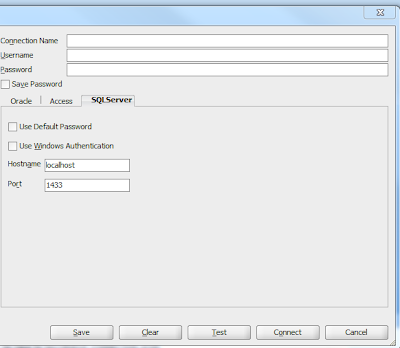
Restart your SQL Developer, Select New Connection option and now you can see the SQL Server Tab in the option.
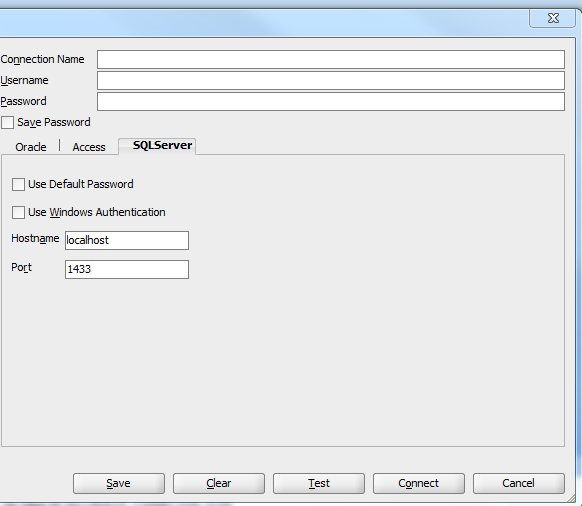


Configure your database details and test the connection.

Hope this helps,

Cheers

Nirav

Monday, November 3, 2008

Connecting SQL Server from JDeveloper

Here is a small example on how to create a SQL Server Connection on JDeveloper.

First of all you will need the sqljdbc.jar. You can download it from the Microsoft site. sqljdbc.jar is available across different versions SQL Server 2000, SQL Server 2005, etc. I'm connecting to SQL Server 2K here using JDeveloper 10133.

Once downloaded, we need to add it to the JDeveloper Libraries. I have listed here the steps to create a user library from JDeveloper Help:
  • From the main menu, choose Tools Manage Libraries.
  • In the Manage Libraries dialog, select the Libraries tab, then select the User node, and click New.
  • In the Create Library dialog, enter a library name, select the Source Path node, and click Add Entry .
  • In the Select Path Entry dialog, browse to the location of the drivers for the database you are connecting to. Select the driver files, and click Select.
  • In the Create Library dialog, click OK, and in the Manage Libraries dialog, click OK .

We can add this library while creation of databse also, but adding first using Manage Libraries is a good practice.

Now in JDeveloper, go to Connection Navigator, Right-Click on Database and select "New Database Connection" from the context menu. Follow the wizard as displayed below:


Select the last option "Thid Party JDBC Driver" from the drop-down.

On the next page, provide valid UserID and Password.


On step 3

For Driver Class, name is com.microsoft.sqlserver.jdbc.SQLServerDriver, and select the library sqljdbc.jar from Manage Libraries as we have added above.


Define the URL as below
jdbc:sqlserver://<db_instance>:<port>;databaseName=<db_name>;user=<userid>;password=<password>


Click Next and Test the connection.

Let me know if you are facing any issues.

Cheers

Nirav

Note : Before deploying BPEL process, we need to deploy sqljdbc.jar file to two different locations on the server: soa_home/bpel/lib and soa_home/j2ee/home/applib. For more info..., refer to http://forums.oracle.com/forums/thread.jspa?threadID=978304&tstart=0